Adding and managing team coaches
Invite admins and coaches to your workspace, set their role and manage their access.

FitFocus is built for coaching businesses that run at scale, from solo coaches bringing on support staff to gyms with a full team. You can invite as many team members as you need and control what each one can access.
Your roles and permissions are configured for your workspace during onboarding. From there, you can add and manage your team yourself whenever you bring someone new on board.
Admin and coach roles
Every team member you invite is either an admin or a coach. What each role can see and do is defined for your workspace during onboarding, so the exact permissions depend on how your setup was configured. As a general guide, admins have broader access across the workspace, while coaches work with their own clients and programming.
Inviting a team member
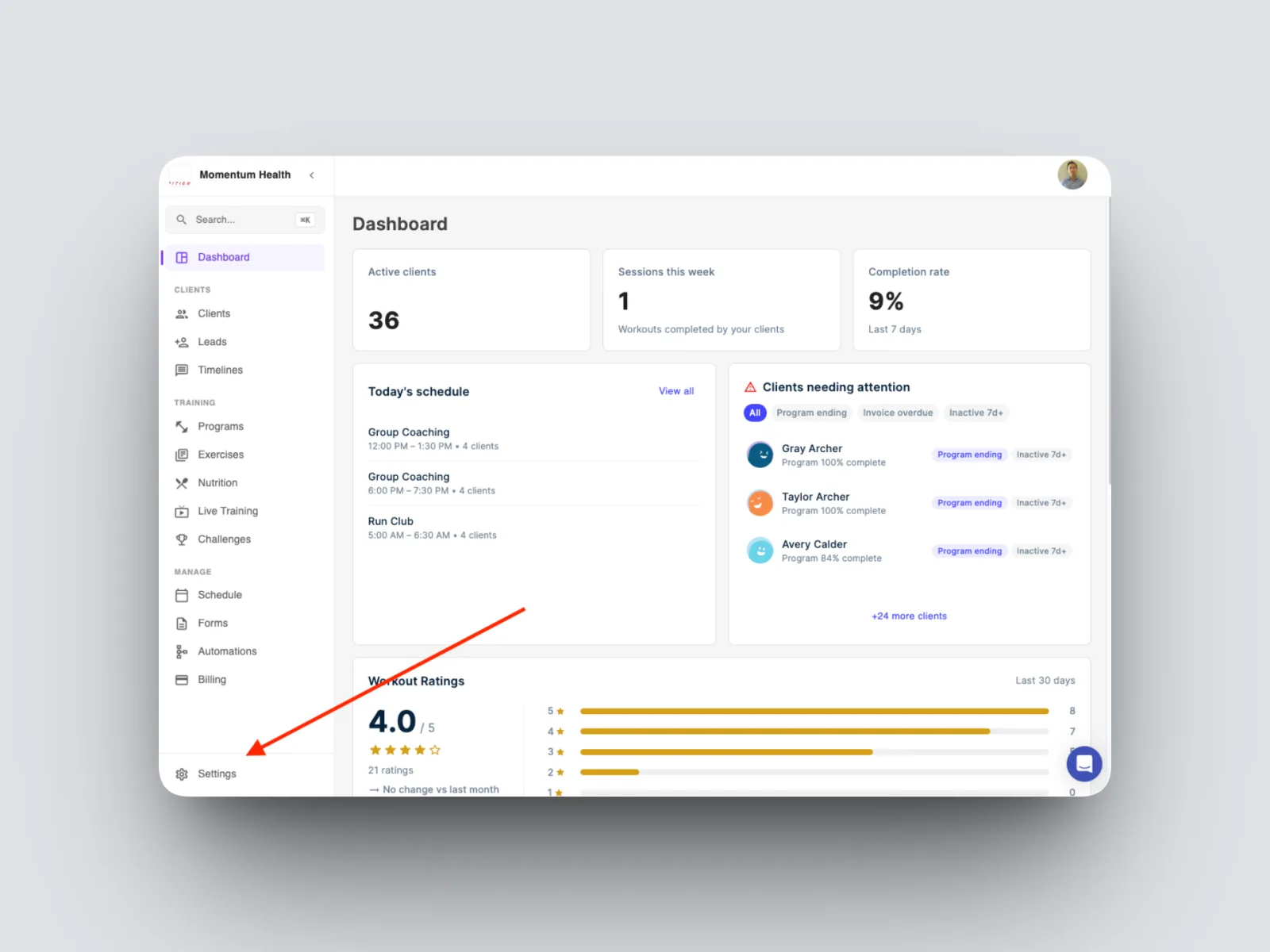
- From the left-hand menu, open Settings and go to your team area.
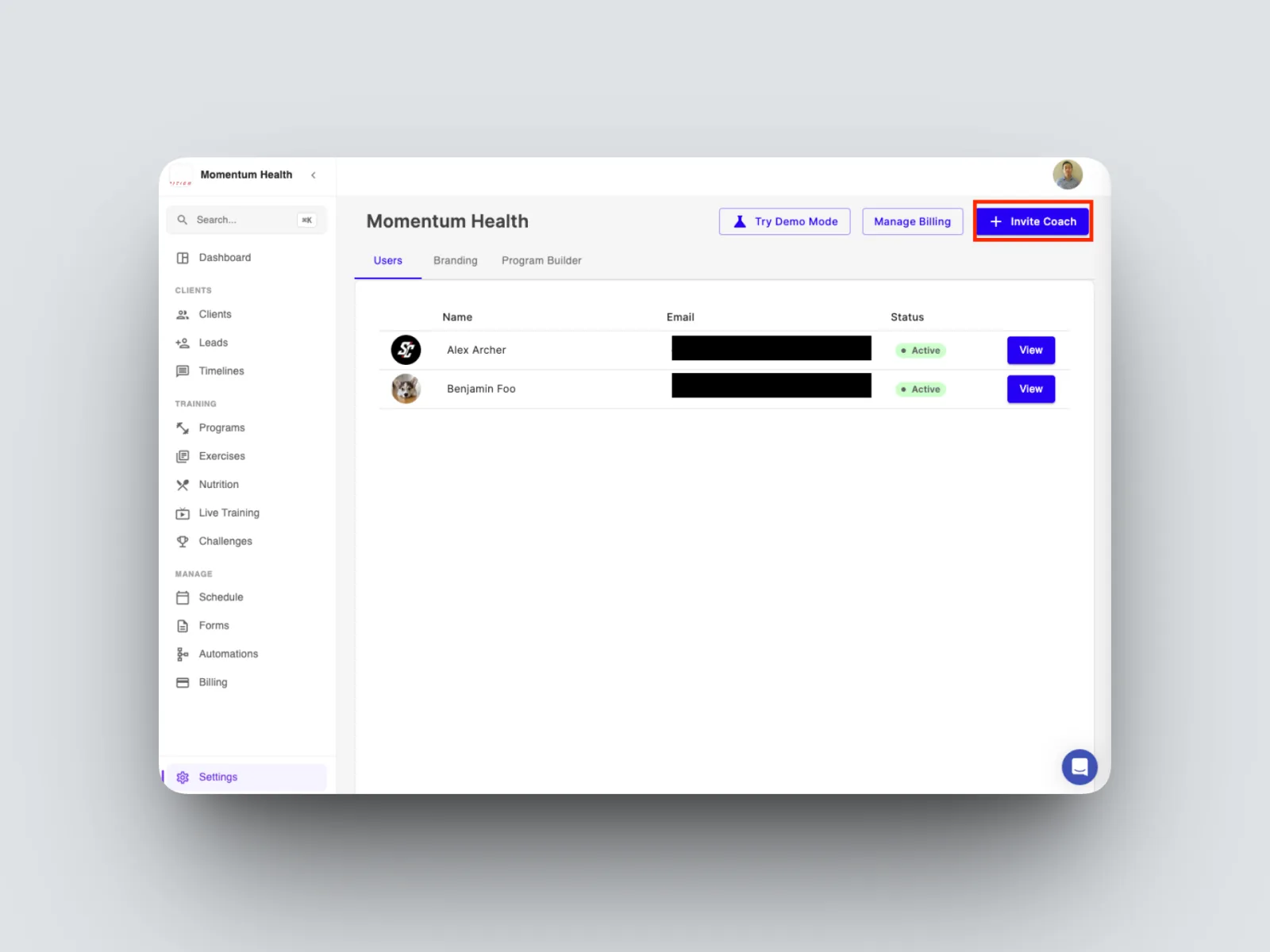
- Select Invite coach.
- Enter the person's email address and choose their role, admin or coach and send the invitation
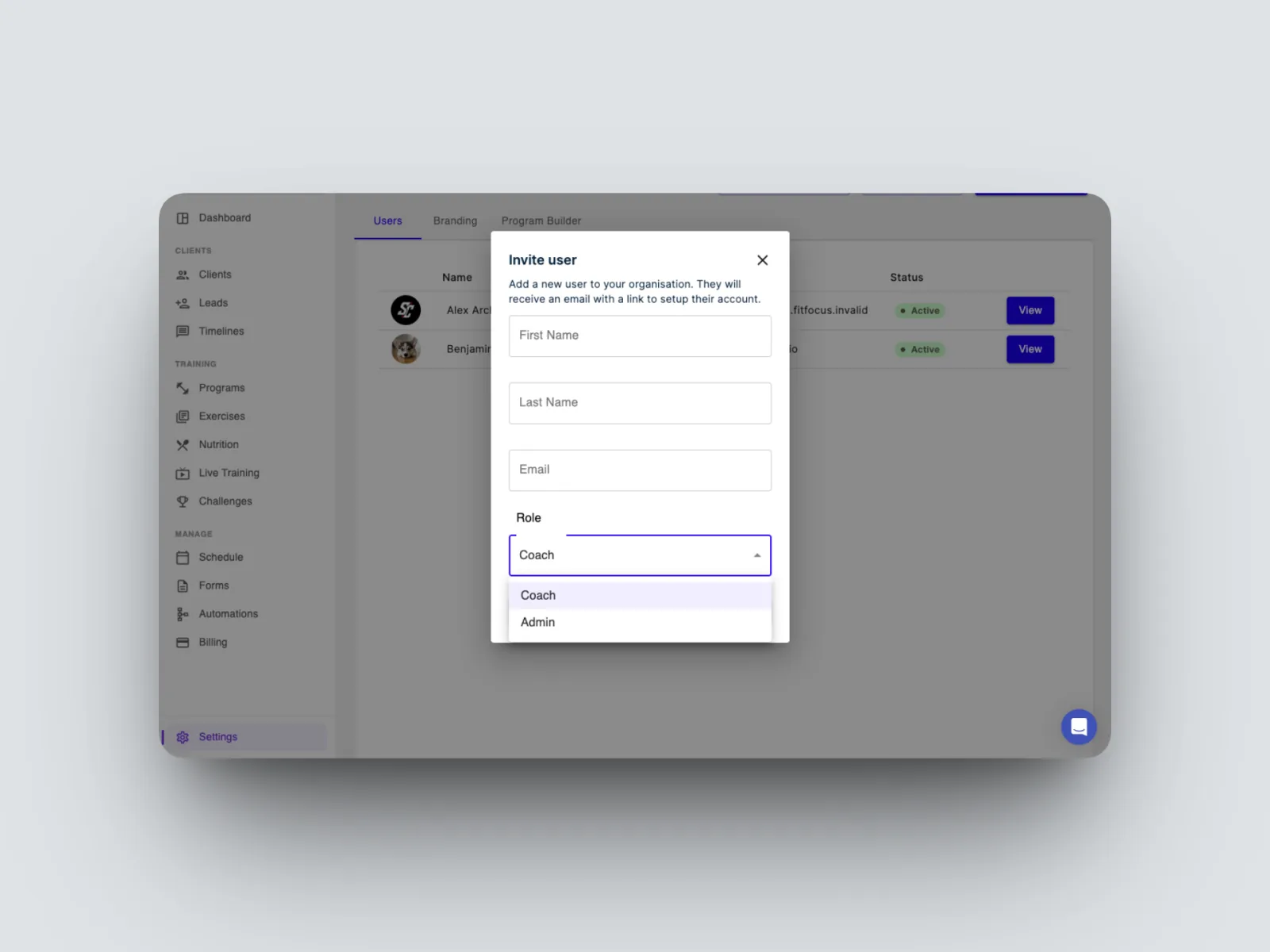
The person receives an email invitation to join your workspace. Once they accept, they will appear in your team area with the role you assigned.
Managing your team
You can update your team at any time from the same area.
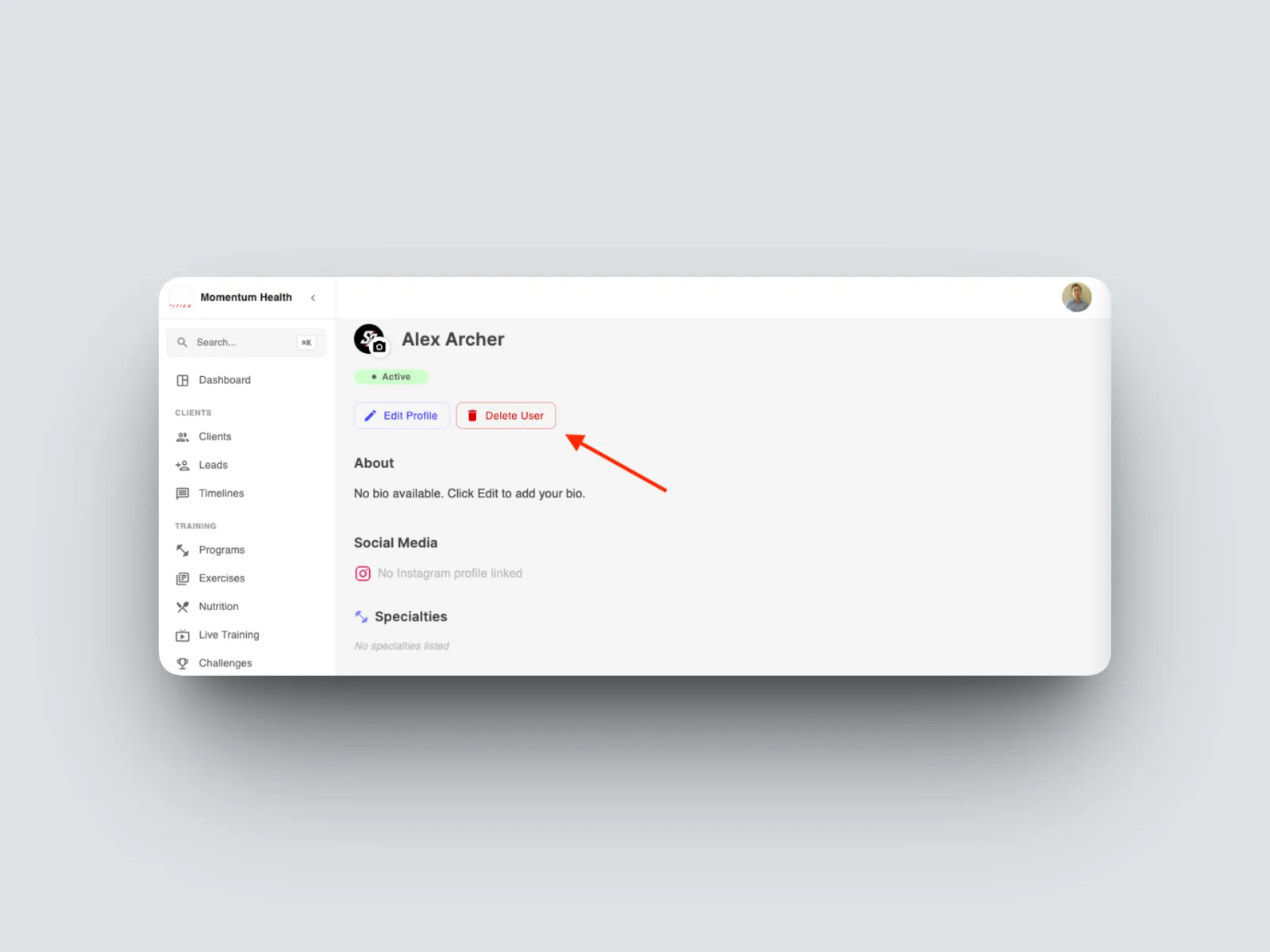
- To remove access, select remove on the team member's entry. They will no longer be able to sign in to your workspace.