
Adding a client
Invite a client to your branded app with their name and email, and set optional coaching details.

Adding a client sends them an invitation to join your workspace, branded as your own. All you need to get started is their name and email address, and you can set a few optional details that make managing them easier later.
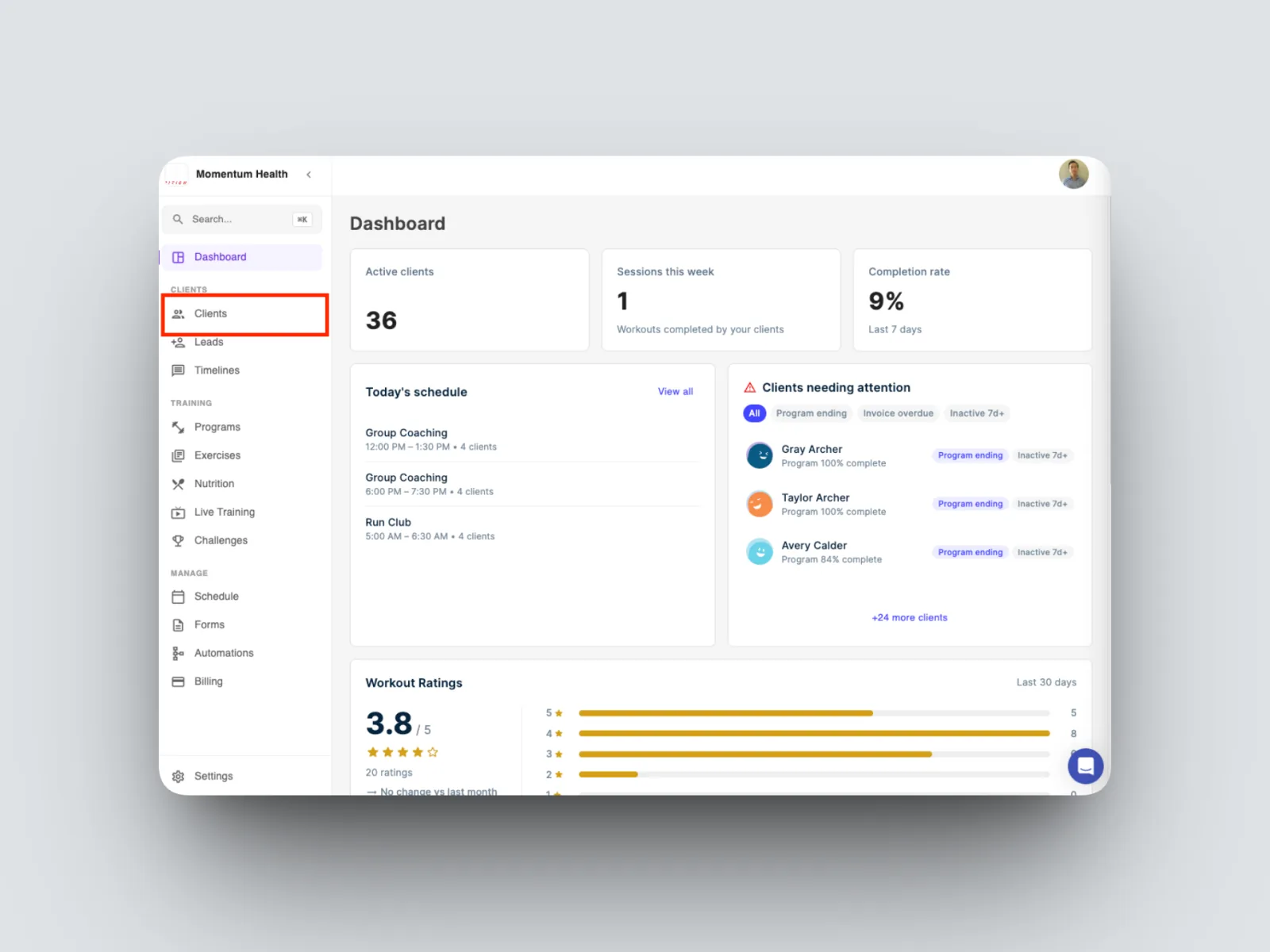
- From the left-hand menu, open Clients, then select Invite client.
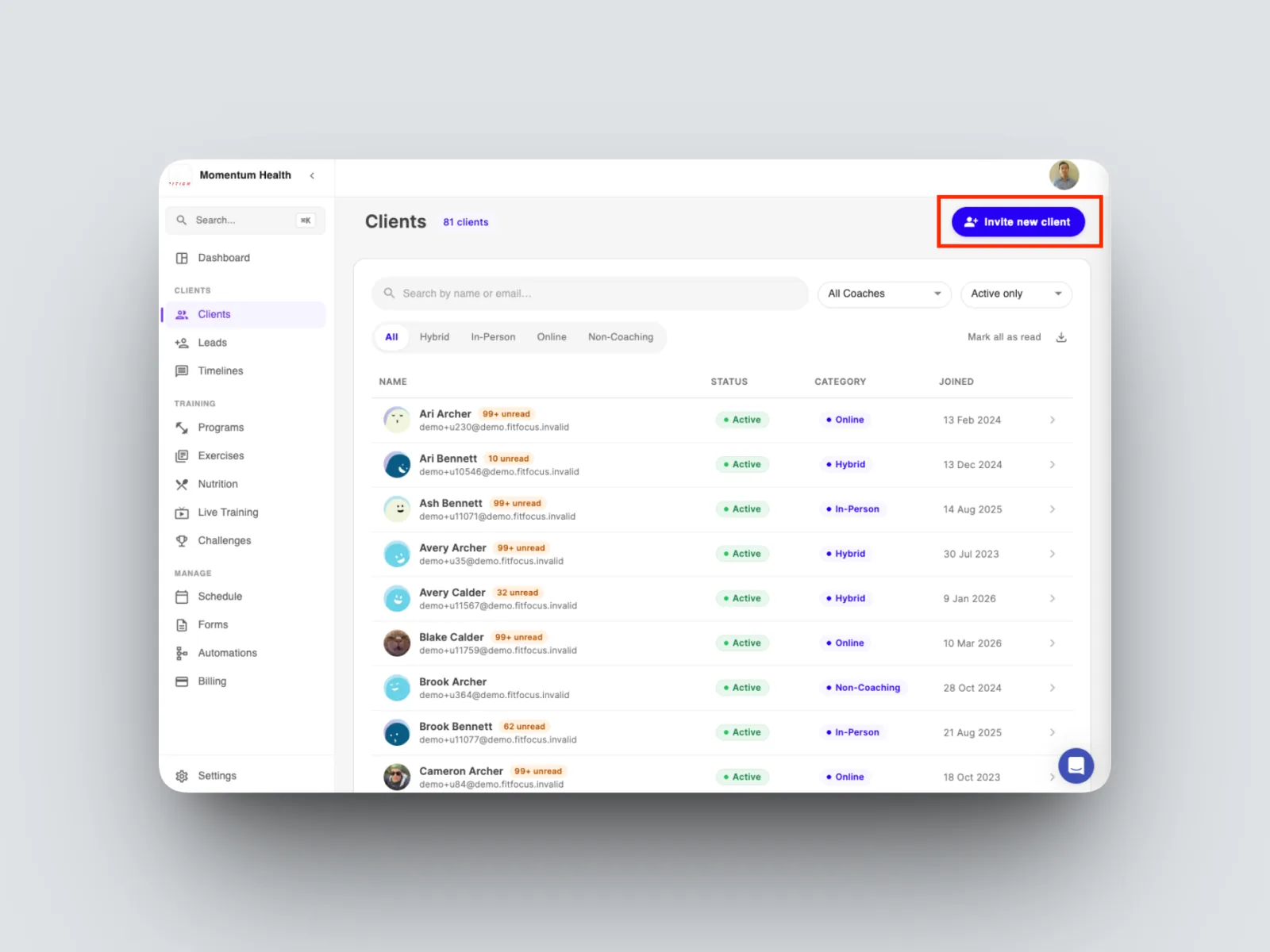
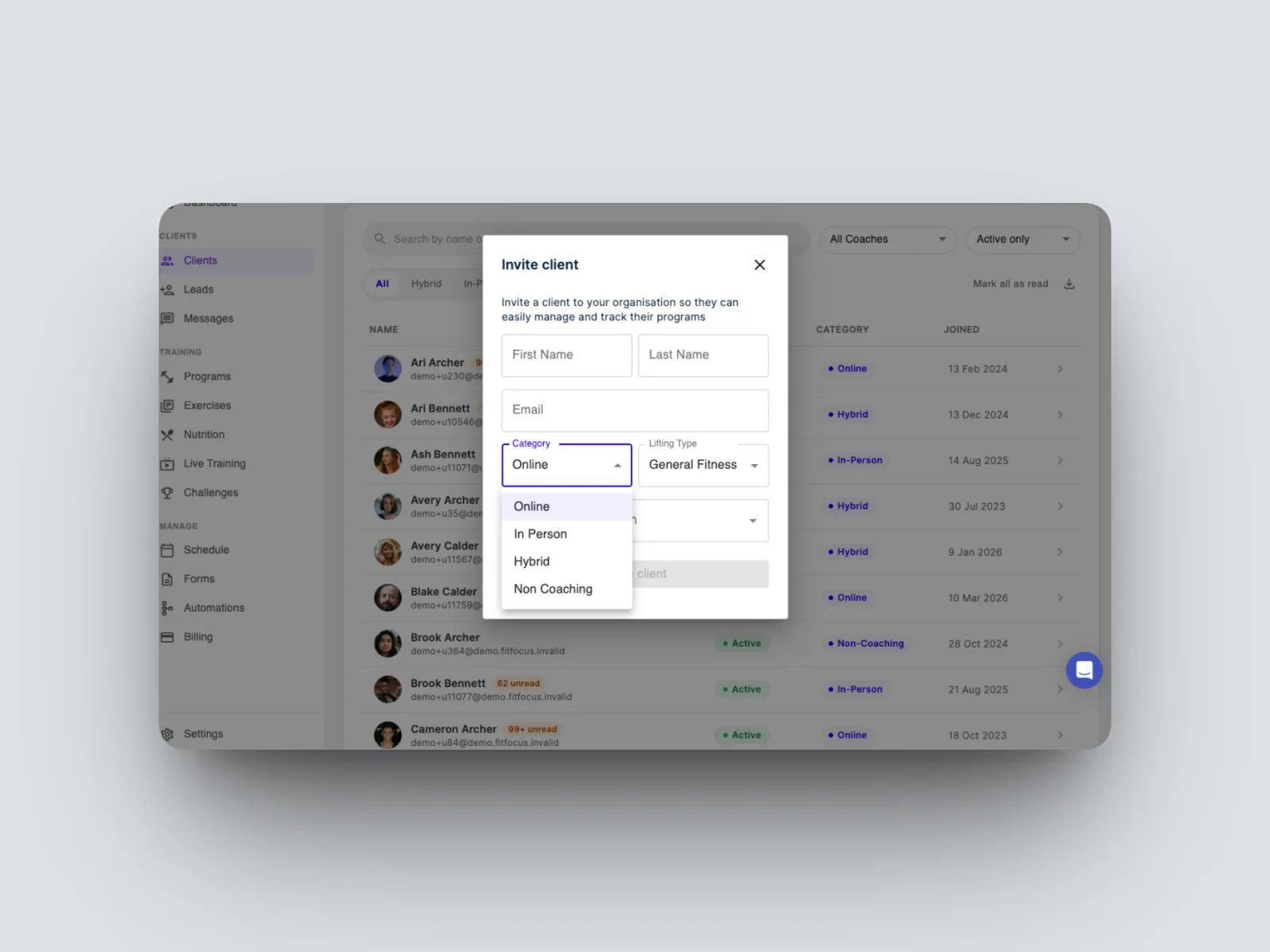
- Enter the client's first name, last name, and email address.
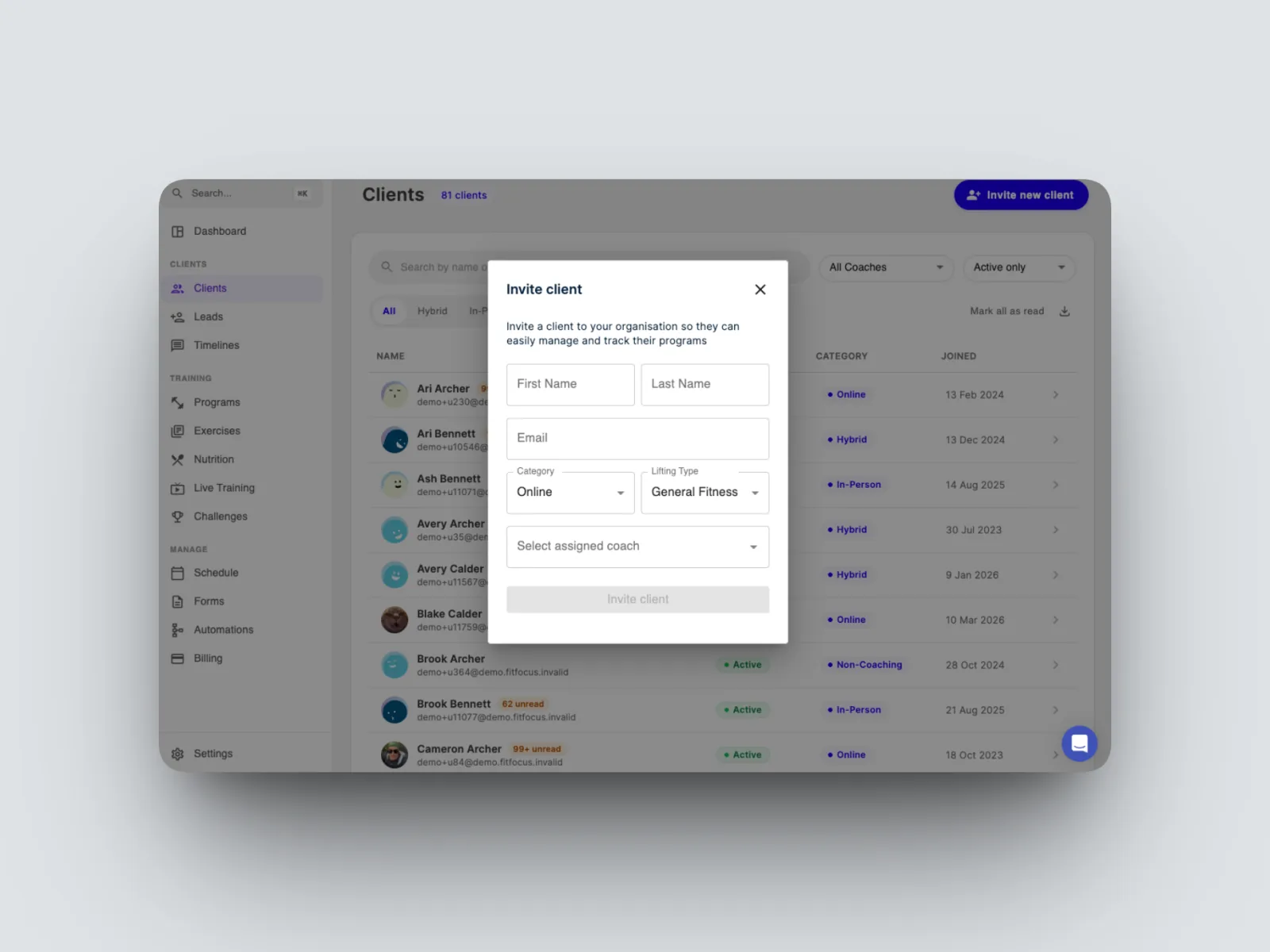
- Assign a coach from your workspace to manage the client. This is optional, and especially useful if you run a team or a gym with multiple coaches.
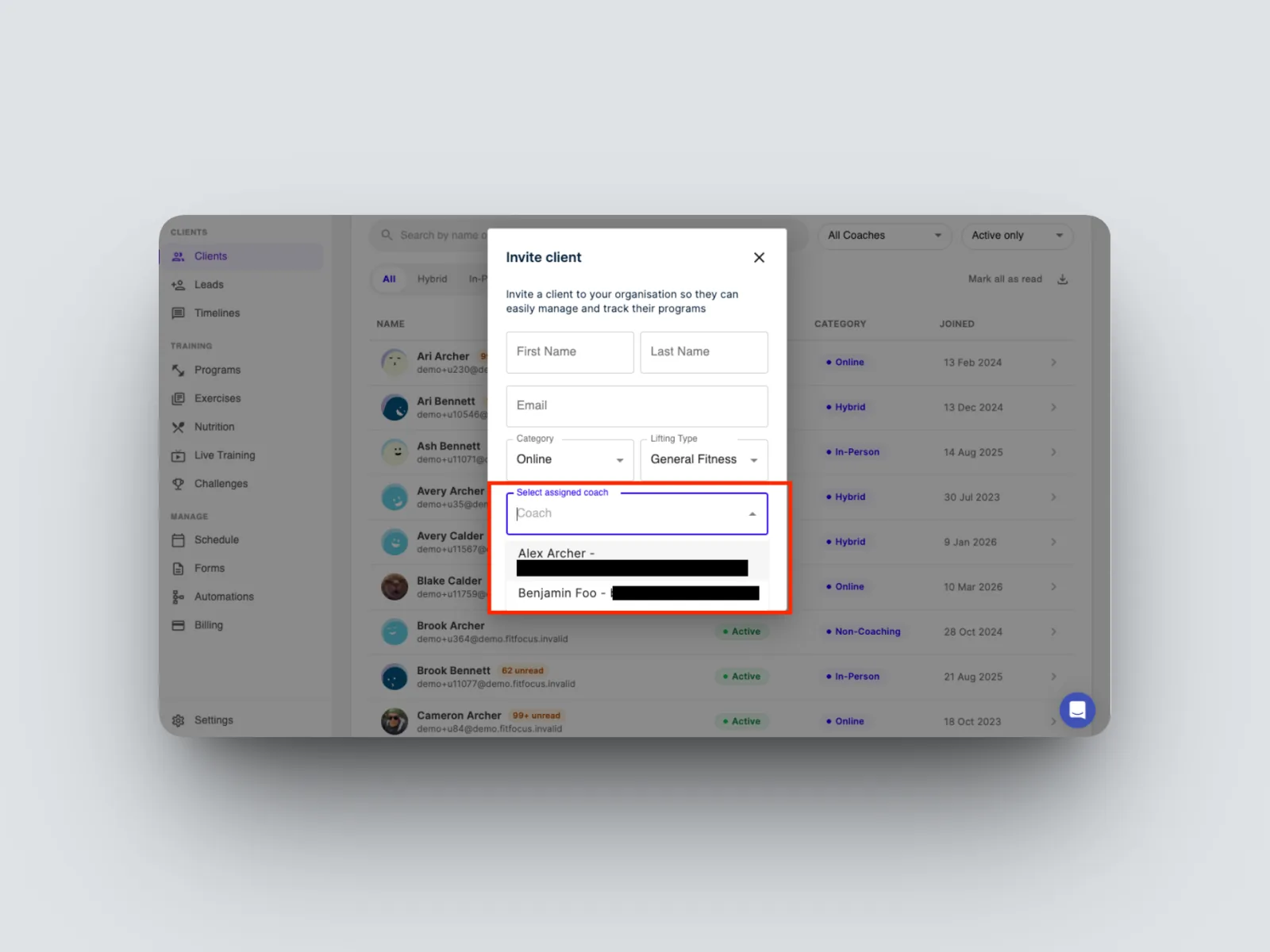
- Set the client's category (online, in-person, hybrid, or non-coaching) and their lifting type. These are optional, but worth completing.
- Select Invite client.
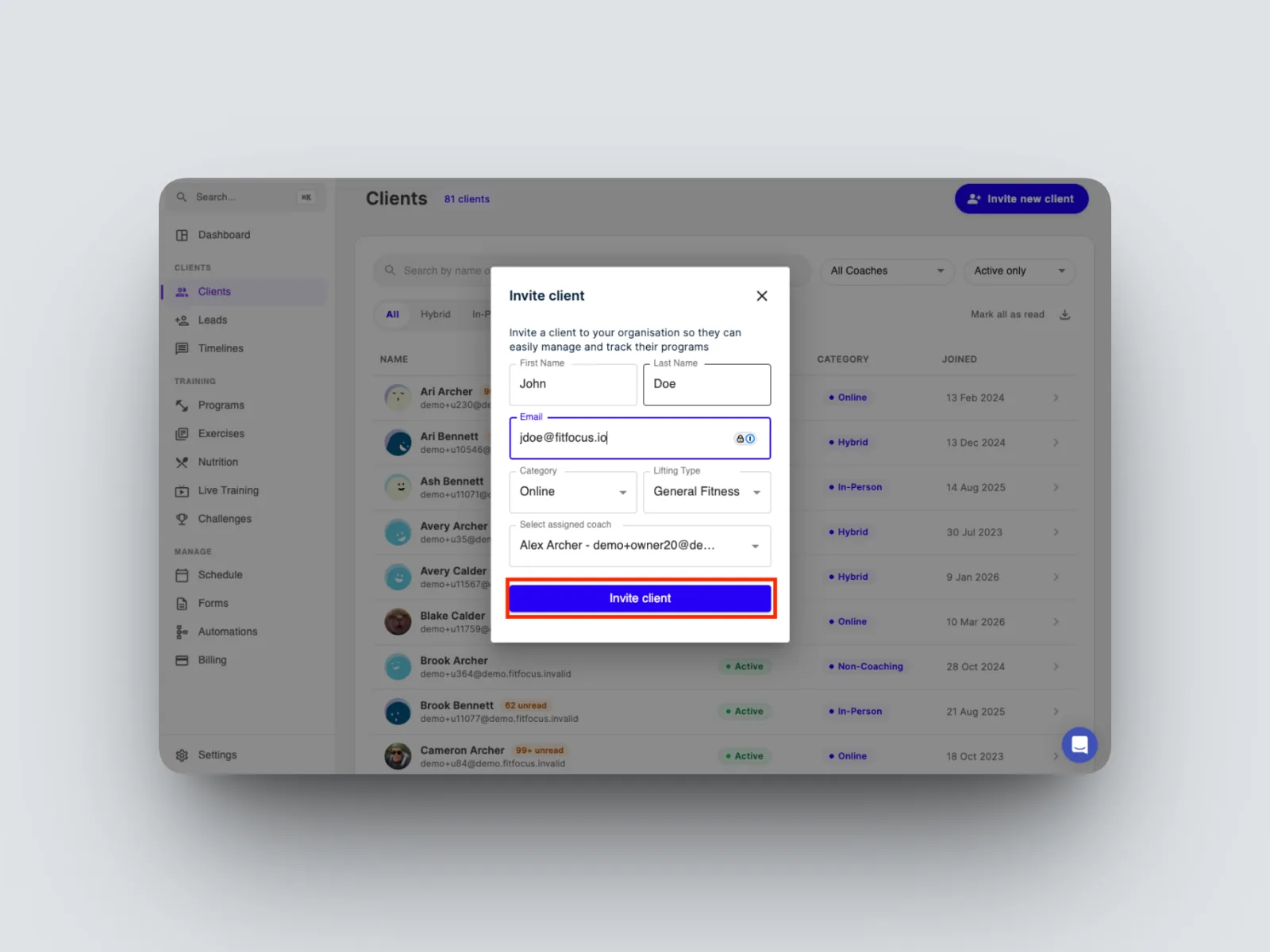
The client receives an email, customised with your branding, inviting them to join your workspace. Once they accept, they appear in your Clients list.