
Archiving and offboarding clients
Set a client inactive for a break, or delete them when they stop training with you.

When a client takes a break or stops training with you, you have two options, depending on whether the parting is temporary or permanent. Both are handled from the client's Settings tab.
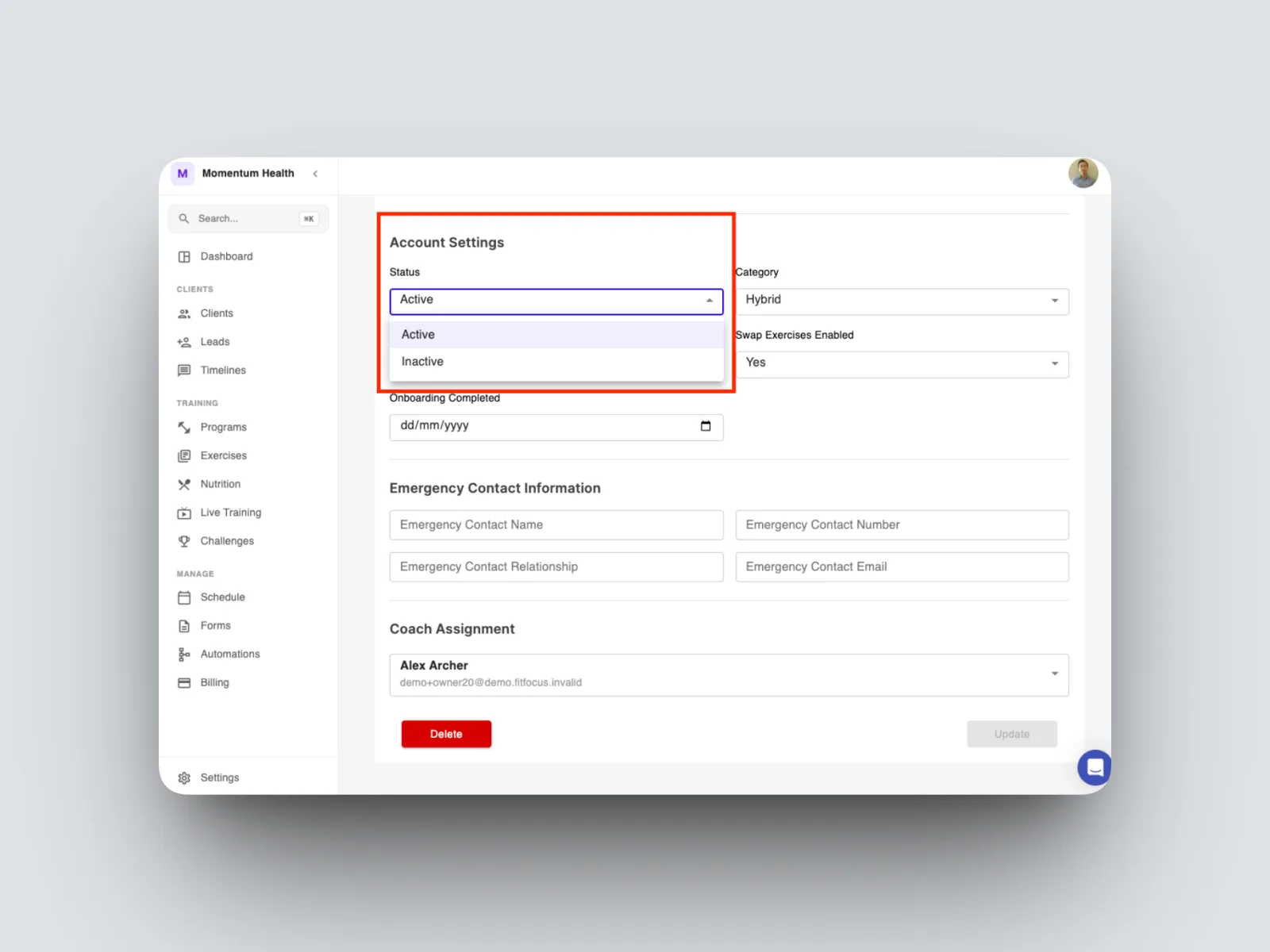
- Set the client to inactive if they are pausing, for example taking a break or going on holiday. Their profile, timeline, and history stay intact, and they drop out of your clients needing attention panel so your dashboard is not cluttered by clients you are not actively coaching. Set them back to active when they return.
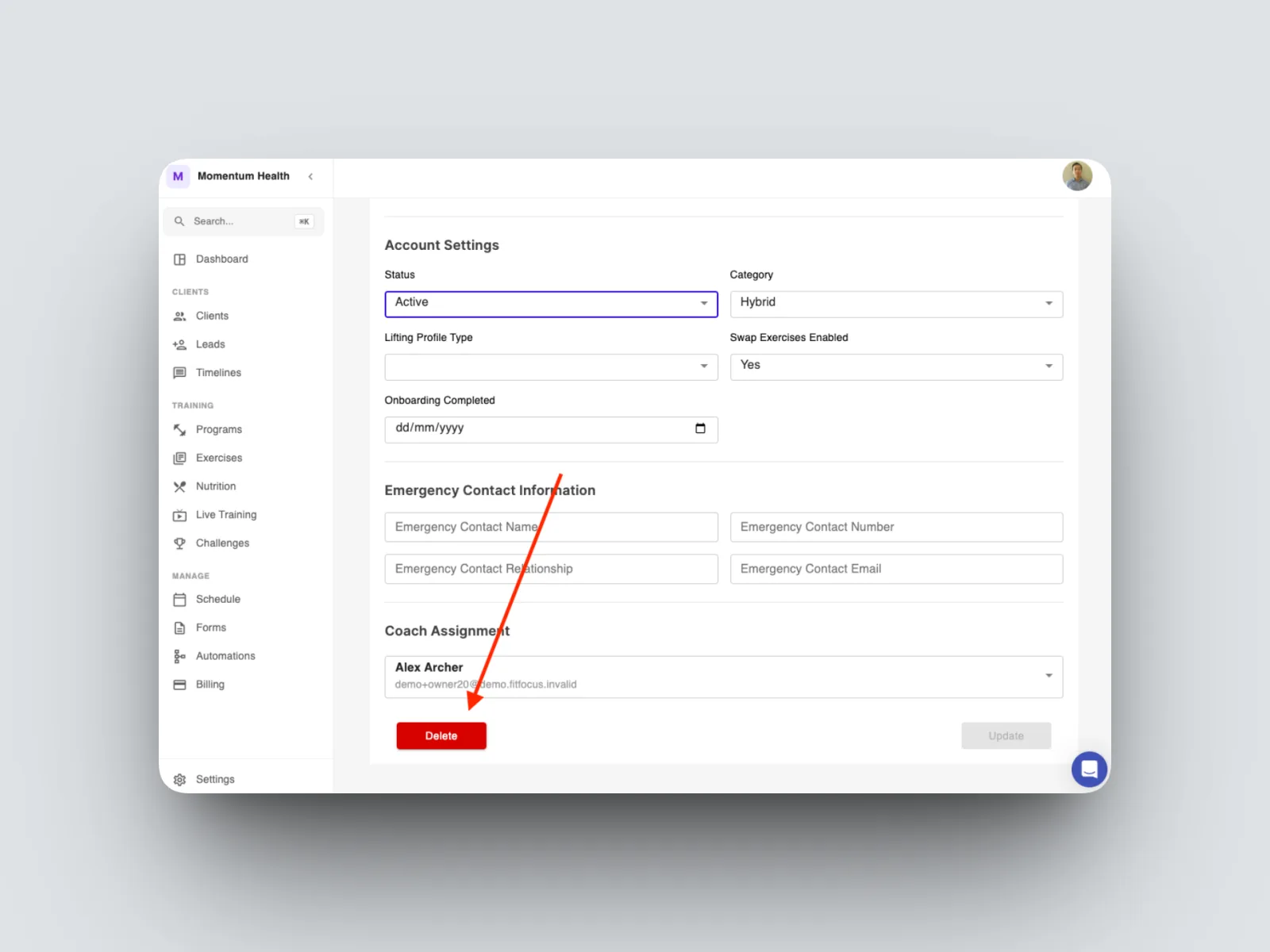
- Delete the client if they have churned and are no longer training with you. This removes them from your workspace altogether.
How to offboard a client
- Open the client from your Clients list and go to the Settings tab.
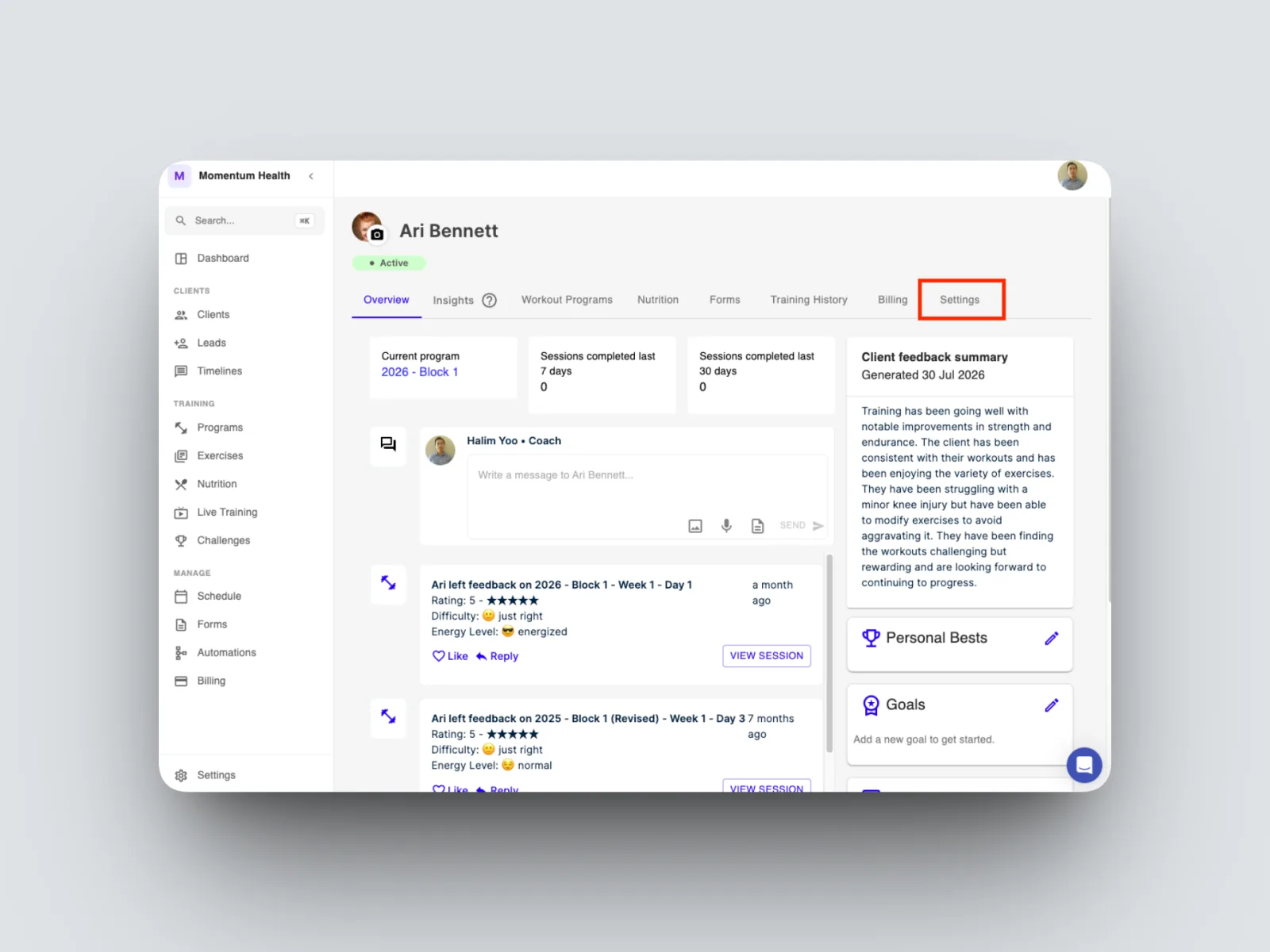
- Scroll down to the status and account options and set the client to inactive to pause them
- Alternatively, to delete them altogether from your workspace select delete to remove them from your workspace.
Keeping churned or paused clients out of your active list keeps your dashboard accurate and your clients needing attention panel meaningful.